
Last Asylum Connection Timed Out: How to Fix It
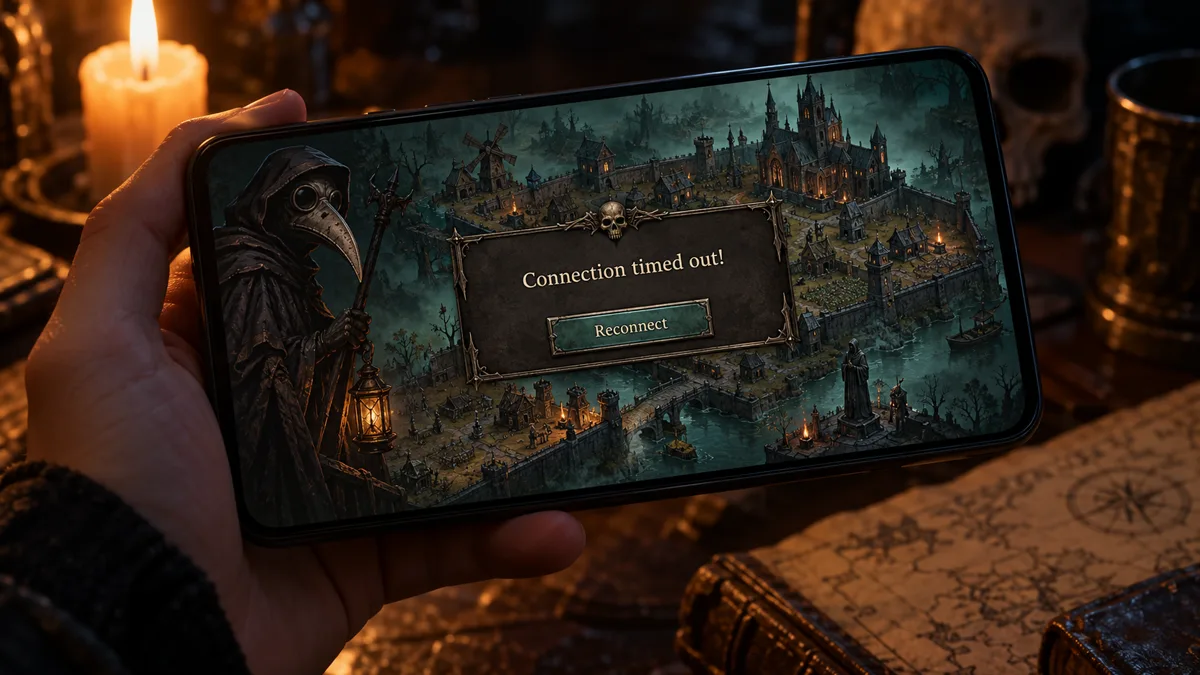
The Last Asylum: Plague message Connection timed out! means the game sent a request to the server and got no answer in time. Three first steps show where the problem sits: switch between Wi-Fi and mobile data, update the game in your store, and ask your Kingdom whether they hit the same message. If they do, only waiting helps. If only you see it, the steps below fix your side.
Error Messages Explained
The game shows a different text for each kind of failure, and the text tells you whether to fix your phone or wait for the server. Find your message in the tables, grouped by network, server, version and account. Messages that end with Reconnect? come with a button that retries the link.
Network and Timeout Messages
| Message | What it means | Fix |
|---|---|---|
| Connection timed out! | The game sent a request and the server did not answer in time. | Switch between Wi-Fi and mobile data, then try again. The steps below cover the rest. |
| Data request timed out Data request timed out. Reconnect? |
A data request went unanswered. With the Reconnect? button, the game offers to try the link again. | Tap Reconnect once. If the same text returns, change the network. |
| No network connection. Please try logging in again later | The game found no usable connection at login. | Open a web page in another app to test the connection, then log in again. |
| Network not detected. Reconnect? | The game cannot see any network on the device. | Turn off airplane mode, turn on Wi-Fi or mobile data, and tap Reconnect. |
| Network connection lost. Reconnect? | The link dropped while you were playing. | Tap Reconnect. If it repeats, move closer to the router or switch networks. |
| Failed to connect to server. Reconnect? | The game could not open a link to the server. | Wait a minute and reconnect. Check other players if it keeps failing. |
| Unable to connect to the server. Please try again later. | The reconnect attempts did not reach the server. | Check your internet connection, restart the game and retry later. |
| Data transmission error. Server connection lost. Tap to log in again | The link to the server broke while data was moving. | Tap the message to log in again. |
| Reconnection failed Connection failed Disconnected while logging in |
A retry or the login link did not hold. | Check the network, close the game completely and log in again. |
| Too many connection attempts | The game saw too many tries in a short time. | Stop tapping, wait a few minutes and try once. |
Server Messages
| Message | What it means | Fix |
|---|---|---|
| Server under maintenance. Login temporarily unavailable | The servers are closed for work. A Maintenance Notice window can appear with a countdown. | Wait. Nothing on your phone changes this. |
| Server error | The server reported a fault. | Wait a few minutes and log in again. If other players see it too, only time helps. |
| Logged out due to server shutdown | The server stopped while you were in the game. | Log in again later. |
| Too many login players | The server has too many people logging in at that moment. | Try again in a few minutes. |
Version Messages
| Message | What it means | Fix |
|---|---|---|
| Current version is too old. Please install the latest version. | Your game build is behind the server. | Update the game in Google Play or the App Store. |
| Your resources are outdated. Please update to the latest version. | The data the game downloaded is behind the server. | Update, open the game and let the loading finish. |
| New version available. Tap Confirm to update. | A newer version is ready. | Tap Confirm and install it. |
Account and Login Messages
| Message | What it means | Fix |
|---|---|---|
| Login failed | The login did not go through. | Check the network, then log in with the same login again. |
| Token validation failed Token Expired |
Your saved login is no longer accepted. | Log in again with the same login you bound to the character. |
| Logged out due to inactivity | The game signed you out after a long idle time. | Log in again. |
| Kicked by game admin | A game admin removed you from the session. | Contact support from the game and describe what happened. |
| Device banned User banned Account banned Your IP has been banned. This account has been banned |
The game blocks the device, the user, the account or the network address. | See the ban section below. |
| Your banned avatar has been restored after review. | A banned avatar passed a review and works again. | Nothing to do. |
Server or Your Network
The fastest test is to ask who else has the problem. A server outage hits everyone on the Kingdom at once, and a bad connection hits only one player. If you cannot log in, ask your alliance mates or the community on the official Discord, which the official pages list.
| Sign | Points to the server | Points to your network |
|---|---|---|
| Who sees it | Players in your Kingdom and your alliance see it at the same time. | Only you see it, while your alliance mates play normally. |
| Message | Server under maintenance, Server error or Logged out due to server shutdown. | No network connection, Network not detected or Network connection lost. |
| Maintenance Notice | A window shows Game maintenance in progress with the time remaining. | No such window appears. |
| Other apps | Other apps on your phone work. | Other apps and web pages fail or load slowly too. |
| Another network | The same message appears on Wi-Fi and on mobile data. | The game opens on a different network. |
Two messages can come from either side. Connection timed out! and Data request timed out only say that no answer arrived. Use the table above to decide, and give the server a few minutes before you change settings. When the Maintenance Notice window appears, the countdown shows the time remaining, and nothing you do on the phone speeds it up. The servers page separates maintenance from a failed connection, and the FAQ lists other login problems.
Wi-Fi, Mobile Data and VPN
Start with the connection, because that is the most common reason for a login that stops. Follow the steps in this order and test the game after each one.
- Open a web page or another online app on the same network. If it fails too, fix the connection before you touch the game.
- Move the game from mobile data onto your home Wi-Fi, because logins that fail on mobile data often go through there. If Wi-Fi is the weak link, move closer to the router, restart it, or try mobile data instead.
- Turn airplane mode on for a moment and off again. This makes the phone rebuild its network link.
- Use a VPN only to get in. Some players can reach the login only behind a VPN, and then turn it off once the character has loaded. Leave it off if the game plays fine without it.
- Already on a VPN and still timing out? Switch it off and test the plain connection. The result tells you which route the game accepts.
- Close the game completely, open it again and log in with the same login.
Other apps on the same connection may hide the problem, so pause large downloads and video streams while you test. On a PC through Google Play Games, the same checks apply, and the PC page covers that setup.
Device and Game Fixes
When the connection is fine and the error stays, check the game and the phone. The first two steps use tools inside the game and the store, and the table covers the device settings.
Test the Network in the Game
The game has a Network test with a Test button. While it runs, the game shows Testing... and then rates the connection as Smooth, Average, Poor Connection or Time Out. Poor Connection or Time Out tell you to change the network before you play again. Press Test again right after a check, and the game answers Network checked, no need to retest.
Update the Game
Errors that a newer build already fixed keep appearing on old builds. Update the game in the store and restart the phone, especially if the error started right after a patch. The messages Current version is too old. Please install the latest version. and Your resources are outdated. Please update to the latest version. mean the update is the fix. The updates page lists the newest versions.
Phone Settings
| Step | Android | iPhone |
|---|---|---|
| Free storage | Settings, Storage | Settings, General, iPhone Storage |
| Date and time | Turn on automatic date and time in the system settings | Settings, General, Date & Time, Set Automatically |
| Network reset | Reset Wi-Fi, mobile and Bluetooth in the system settings (the menu name depends on the phone maker) | Settings, General, Transfer or Reset iPhone, Reset, Reset Network Settings |
| Cache | Settings, Apps, the game, Storage, Clear cache | No cache button, so offload or reinstall the app |
| Reinstall | Uninstall and install again from Google Play | Delete the app and install it again from the App Store |
Change one thing at a time and test the game after each step. A network reset also removes saved Wi-Fi passwords, so keep the password at hand before you try it.
Keeps Crashing or Stuck Loading
Loading that stops around 55 percent is a known login problem. Move to a stable connection, force-close the game and open it fresh, and install any update that waits in the store. A game that keeps crashing right after an update needs the newest version and a restart of the device before anything else.
- Free some storage. A phone that is almost full can fail to load the data the game needs.
- Close other apps, restart the phone and open the game first.
- Update the game and make sure the date and time are set automatically.
- Clear the cache on Android, or offload the app on iPhone, as the table above shows.
- Reinstall only after you bound your login, and let the first loading finish on a stable connection.
If the game still is not working, write to support with your phone model, the version number of the game and a screenshot of the message. The support section below gives the route. The beginner guide is the best next stop once you are back in.
Banned or Cannot Log In
Five messages mean a block: Device banned, User banned, Account banned, Your IP has been banned. and This account has been banned. They are not connection errors, so a new network or an update does not change them. The IP message points at the network address you connect from, and the other four point at the device, the user or the account.
The only route is support. Open the profile icon, Settings, Help and the Customer Center, and describe what happened in the Feedback section with a screenshot of the message. The game also reviews banned avatars, and it confirms a restored one with Your banned avatar has been restored after review. Login problems that are not bans, such as Login failed or Token Expired, need a fresh login with the same account, as the message table shows.
Contact Support
Support has three routes. The first sits inside the game: profile icon, Settings, Help, then a ticket in the Customer Center. The second is the support page that the App Store links for iPhone players.
The third is an email contact, global.support@37games.com, which the Google Play page shows for Android players.
Write down the exact message text and the time it appeared, name your phone model and game version, and attach a screenshot. The official website page lists every route in one table, and the account page covers login and binding questions.
Frequently Asked Questions
Is Last Asylum down right now?
Check the people around you, because the game gives the answer itself. If players in your Kingdom and your alliance see the error at the same moment, the server is the cause. A closed server shows "Server under maintenance. Login temporarily unavailable" and a Maintenance Notice window with a timer. If only you see an error, fix your network side.
Why does Last Asylum keep saying connection timed out?
The game keeps sending requests and gets no reply, which points to a weak link or a busy server. Logins that fail on mobile data often go through on home Wi-Fi, so test that first. Update the game and restart it as well. The message table lists every connection text and the matching fix.
Does a VPN help with Last Asylum connection errors?
Sometimes, for logging in. Some players can log in only on home Wi-Fi or behind a VPN, and they turn the VPN off after the character loads. Try Wi-Fi first. If a VPN is already on and the errors continue, switch it off and test the plain connection too. The VPN steps show the order.
Will I lose my progress after a connection error?
A connection error does not delete your base, because the servers hold your base, your alliance and your event progress. The risk starts when you reinstall or change phones with no bound login, since the game warns that an unbound account is easy to lose. Bind a login first. The account page shows how.
How long does Last Asylum server maintenance last?
The Maintenance Notice window shows the answer, because it counts down the time remaining for the current maintenance. Login stays unavailable while the servers are closed, so waiting is the only fix. Restarting the game or the phone does not shorten it. The servers page explains the two server messages.
Why does it say no network connection when my internet works?
The message means the game could not reach its server, and that can happen even when other apps load. Switch networks, try the Network test in the game, and update the game. If the text turns into "Server under maintenance", the problem is on the server side. The step by step fix covers each check.